Showing posts with label 1to1 ipad. Show all posts

Saturday, November 24, 2012

Annotating PDF documents on the iPad

One of the biggest benefits to using iPads in the classroom is moving toward a paperless classroom. In order to do this, we must find an alternative to having students write on paper worksheets or other graphic organizers. One of the easiest ways to do this is to have students annotate a PDF (Portable Document Format), then save that revised version on their iPad.

In most classrooms it looks something like this: 

1. Teacher makes a PDF of the worksheet/handout/graphic organizer. This can  be done by scanning the paper copy and saving it as a PDF file. If the handout is made in Microsoft Word, the file can be saved as a PDF file. (All of my class handouts are converted in this way.)

2. The PDF handout is made available to students. This can be done in numerous ways. Read our blog post on iPad workflow for more information on how to do this.

3. The student uses the "Open in..." function on the iPad to open the PDF document in an a particular app that lets them annotate and save the document. The most popular app being used for this purpose is Notability.

However, unlike most people, I am not a huge fan Notability. I gave it a shot earlier in the year and quickly began the search for alternatives. Notability does have more bells and whistles compared to other apps. However, the most important features I need my students to have is the ability annotate text (highlight, underline, cross out, etc.) and add both "hand written" and text notes. I'm not saying Notability can't do these, it's just not as easy. So, two possible alternatives to check out are Adobe Reader and PDF Expert.

Alternatives to Notability...

Adobe Reader (Free)

Adobe now offers an Adobe Reader mobile app for Android and iOS devices. It looks and acts much like the desktop version. 

File Management: 
All annotated files are saved in your main "Documents" folder. You can create additional folders (for different subjects) and subfolders (different units?) for your documents. You can also sign up for an account at Acrobat.com that lets you sync files between different devices. 

Annotating: 
Press down on a word, and you have the option to copy, highlight, strikeout, underline, or define the word. Once you highlight, strikeout, or underline, you can then change the color and opacity of your mark. 

Adding notes: 
Press down on an empty spot, and you have the option to add a note, typed text, freehand, or a signature. The "note" creates a sticky note, but all other types of notes can then be modified. You can delete the note or change the thickness, color, and opacity. Also, when you press on it a second time, a text box is created that can easily be resized or moved anywhere on the page. 

Summary: 
I know this may not sound any easier than Notability, but I have about ten students with iPads this year who also found Notability difficult to use. I had them use the Adobe Reader app, and they like it much more. Again, they aren't doing anything fancy, just adding text to my science handouts.

PDF Expert ($9.99 but was on sale this week for $4.99)

I sent an email recently about Readdle having a sale for many of their apps. One of their apps, PDF Expert, is my absolute favorite app for editing PDFs. It has a lot of advanced features that justify the price.

File Management: 
Like Adobe Reader, files are saved in your "Documents", and you can create folders and subfolders. Files can be sorted by name, date, and size. PDF Expert has some pretty cool syncing features as well. ou can add servers that give you access to documents in Dropbox, Google Drive, Box, and more. There is also a two-way syncing feature so whatever changes you make in the app can be saved to your cloud storage account.  

Annotating: 
Press down on a word, and you have the same options as Adobe Reader, plus the option to leave a sticky note with your highlight. Once you highlight, strikeout, or underline, you can then change the color (lots of options) but not the opacity of your mark. 

Adding notes: 
Press down on an empty spot to have the same features as Adobe Reader. Additional options include a "stamp", image, or sound note. The stamp is digital stamp feature such as "Approved" or "Completed" which could come in handy for grading. The image note lets you add a picture using the iPad camera or Photo Library. The sound note is my favorite feature. Notability also has an audio feature at the top of the note, but PDF Expert creates an audio file anywhere on the page. How could this be handy? Imagine you have a student who is allowed to take tests orally, but with 30 kids in a class you just don't have time to sit down with them. You could have them take the test on an iPad and record their answers orally by leaving an audio note for each question. It also includes an impressive suite of drawing tools that includes lines, arrows, and shapes. You can also change the pen color, thickness, and opacity.   

Other features:
Another cool feature in PDF Expert is the ability to have multiple tabs open for different documents. This makes it much easier and quicker to go back and forth between documents.

Summary: 
I know $10 is a lot to shell out for an app, but it really is worth it. Obviously, the district is not going to pay for all students to have this so I envision this being used by teachers while students use Notability or Adobe Reader. If you would like to experiment with it on my iPad, just let me know!

Resources: 

Adobe Reader: Getting Started Guide

PDF Expert Guide


Wednesday, March 14, 2012

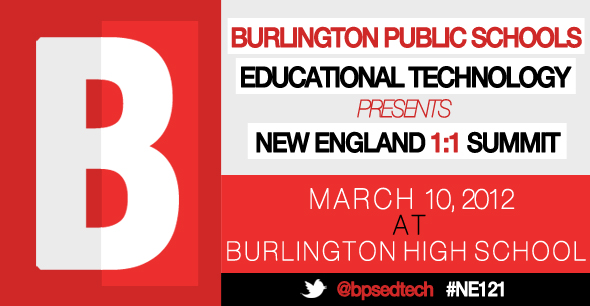
Highlights from the New England 1:1 Summit


This past weekend, we were fortunate to attend the New England 1:1 Summit at Burlington High school. We were joined by Sherwood foreign language teachers Adriana Anderson, Paula Vargas, Heather Leger, and Chin Huei Yeh. We learned a lot about how other schools are implementing a "1 to 1" approach in their classrooms. For this week's tech tip, we will share highlights from the conference.

Burlington High School iPad Implementation

This is the first year for the BHS 1:1 iPad program. The program has been spearheaded by their principal, Patrick Larkin, who received the 2012 NASSP Digital Principal Award. They have put a vast amount of information on the BHS iPad Initiative Page for students, parents, and other schools to utilize. It is definitely worth a look! 

At BHS, students will have the same iPad for all four years and will have the option to pay a "tech fee" in order to keep it once they graduate. Before students were allowed to take the iPads home, they had to attend information sessions with their parents to learn how to use and care for the iPad. The high school has continued to offer Parent Tech Nights and a "How Do I Do That" series for teachers (similar to this blog) aimed at providing opportunities for staff to learn about technology topics and devices. 

When students first received the devices earlier this year, no apps were pre-installed for them. It was up to the students to download their apps. Most of their teachers gave them a list of recommended apps to download that they would be using in class. The whole school has made an effort to embrace the technology. All teachers are expected to have some type of "web presence" that contains a homework calendar and class handouts. They let teachers choose how they would do this. Some options include:
  • Website
  • Blog
  • Wiki
  • Edmodo
  • iTunesU (This is a pretty cool service from Apple that lets teachers create courses and share all class resources with your students such as documents, audio and video, iBooks, website links, and more!)
Students and teachers have the flexibility to use the apps they prefer. It often depends on the assignment, but these are the "Big 3" that were mentioned over and over again by students:
  1. Google Docs
  2. Evernote
  3. Dropbox
Students no longer have server accounts. All of their documents are stored online "in the cloud" using one or more of the services listed above. They use these to share resources with teachers and their peers. This is also the last year teachers will have access to the school server. Next year, they too must move all files to the cloud as well. Read at our 1:1 Summit Notes Google Doc for more information about some of the other apps they use. 

One of our favorite features about this high school is the BHS Student Help Desk. Students take a "Student Technology Integration" course that prepares them to troubleshoot tech problems. The student tech crew then maintains the help desk one period each day for tech problems. They also help teachers across the district implement technology into their classrooms!

What became clear was that 1:1 implementation requires flexibility and a forward-vision.  Person after person emphasized the importance of training and sharing - that it's the big picture, the change in philosophy around the tools that makes the difference - not the tool itself.  As one presenter put it, you can't take a 21st century tool and just put it in a 19th century box (the old education model).  We need to be ready to embrace collaborative, real-time work and let go some of the old ways of doing things to really allow these 21st century skills to flourish.

To quote from our notes on the day:  “Institutions tend to cram innovation into the existing models” - tech is brought in, and the efficacy varies dramatically from room to room because the foundational classroom model has not changed to match the technology.  We end up putting 1:1 devices into an environment not designed for it.  This strikes us as very similar to what happened when we changed to the standards-based approach: at first, many of us simply tried to cram what we already do into this new framework.  Given time, however, it led to a philosophical shift - a change in our approach, delivery, and assessment models.  The same is true for this new wave of technology.


Key Learnings from the Day 

One of the terrific things about a day like this - aside from the fact that we got to earn PD at a free conference - is the chance to talk with other educators and share ideas.  We learned a lot, and sat in on some very good seminars... here are a couple of the key take-aways:
  • Writing has been shown to be a major area for gains in the 1:1 model - studies repeatedly show that scores go up in the 1:1 model.  The gains come when the nature of the process changes - not just typing a final draft, but using the tool collaboratively in the writing process.  Again, it's not the tool itself - it is how the tool helps shape the instructional model into a more collaborative approach.
  •  There are many innovations out there, especially regarding some simple conversion over to the cloud.  Some administrators have converted teacher evaluations and many other forms over to the IPad, reducing paper and allowing for instant delivery of documents.  One English teacher - whose excellent blog is worth a peek - now has her kids keep digital portfolios, and she grades all the papers online - she has some how-to videos explaining how she does it, and will be presenting at the EdCamp Boston conference in April.
  • iBooks Textbooks currently has digital textbooks being sold by some of the major textbook publishers for around $15 apiece. They promise to be engaging and interactive. Unfortunately, these digital textbooks must be sold to individual students. What this means is that schools would be need to purchase these digital textbooks again every year. Most school districts are hoping teachers will collaborate to create their own FREE interactive textbooks using the iBooks Author program. Teachers can then share these for free with their students and colleagues.
Cool iPad Accessories
  • Clamcase ($150) is a very cool iPad case that also acts as a keyboard. It swivels to let you alternate between using the device as a laptop or a tablet.
  • Kensington ($80-110) also makes keyboard cases that convert the iPad into a more conventional laptop when needed, and act to protect the iPad when it's closed.  Both of these cases would be well worth the investment, especially for those who want an actual keyboard for typing on the iPad.
  • Apple TV ($100) lets you wirelessly stream content from your iPad to a TV or projector. This allows you to walk around the room freely with your iPad while, for example, displaying student work via the iPad camera. Kevin Buckley at Oak has used the Apple TV for this purpose with great success.


Upcoming Education Technology PD

EdCamp Boston (currently sold out, but you can get on the waiting list...it's free!)
Burlington High School Summer EdCamp Tuesdays (anyone is welcome!)
MassCUE - They will hold their annual conference October 24th and 25th.


If you are interested in reading all of our notes from the conference, we've made them into a public Google Doc.  All you need to do is go to http://tinyurl.com/121summit  - we can't guarantee they are entirely coherent, but -we hope - there are some good points worth a few minutes of your time.