Showing posts with label Google Docs. Show all posts

Tuesday, April 24, 2012

Battle of the Cloud Storage


If you are a Google Docs or Dropbox user, you will want to read this closely!

Over the course of the last few years, we have strongly promoted Google Docs as an easy-to-use online suite of productivity tools that allows you to create documents, spreadsheets, presentations, and forms. These files can be shared for easy collaboration with colleagues and students. 

We both upload most of our class handouts to Google Documents so they are easily accessible by students, who can either download/print a new handout or make a copy online and save it to their own Google Docs account. However, we do not have ALL of our files in Google Docs. Most of our Microsoft Office documents, pictures,  videos, and all of our other "stuff" stayed on our computer because there was either no need to share them or the files were just too large. For these files, we have Dropbox! 

Dropbox is a free service that lets you sync your files on multiple devices (desktops, laptops, tablets, and smart phones) while also storing a copy "in the cloud". You can make a change to your files on one device, and all other devices are automatically updated. It's a wonderful tool that eliminates the need for a flash drive and gives you peace of mind in case one of your computers crashes. 

Google Docs and Dropbox are both very popular in the field of education. During our visit last month to Burlington High School for the "New England 1-to-1 Summit", it was clear that even in an iPad environment, Dropbox and Google Docs continue to be very important tools. These two services have had their own little niche, but things are about to change...

Dropbox strikes first...

When you install Dropbox on your computer, all files are automatically private. It does come with a "public" folder, and any files placed within that folder are viewable by anyone. You can also share folders with one or more Dropbox users. For example, we have a shared "8 Gold" folder that contains all of our team documents. 

Just yesterday, Dropbox announced on their blog that sharing files is now much easier. Similar to Google Docs, you can now share any file saved in your Dropbox folder by creating a link for that document (or folder) and share it with others. This is important because you can now share files with anyone, regardless if they have a Dropbox account or not. You can email that link to just a few people, or you could post it on Facebook for all of your "friends" to see. 

What does this mean?

This new sharing feature could make it easier to share information with students and parents. Rather than upload all of our documents into Google Docs (where they are often saved in their original formats), it might be worth looking into sharing them through Dropbox instead. 

...and Google strikes back!

Google announced today that it is launching a brand new service called Google Drive. This service allows you to store, share, and edit files online. In fact, all of you Google Docs users will notice a new welcome screen soon as your "Google Docs" will soon become your "Google Drive". 

In addition to these docs though, you will also be able to share/store/edit all of your other files as well and sync them on all multiple devices...just like Dropbox. It is integrated with all of Google's other services, including Gmail and Google+, their social media component. 

I could write on and on about all of the features and make comparisons between Google Drive and Dropbox, but I won't. There have been some great blog posts written today that compare and contrast them perfectly. If you use either service (or for many of you, both), I highly recommend you read up on this!

What does this mean? 

I absolutely love Dropbox, but Google Drive could potentially replace Dropbox for me as a file storage/syncing service. There are two reasons why I think this could happen:

  1. Right now, I have some files that are just in Google Docs, some files just in Dropbox, and some files that are in both Dropbox AND Google Docs. It does get confusing at times trying to search for a file if I can't remember where I have it saved. If it's saved in both, I am not always sure if the two files are identical or if one is newer than the other. 
  2. One feature I do like about Google Drive is that it has some amazing search features. When I search for a file, it will search ALL of my files, including those both saved online and on my hard drive. It will even search for words that are visible in pictures or PDF documents!

Additional Resources


Introducing Google Drive...yes, really
Official blog post from Google announcing Google Drive

CNET News

CNET News

Free Technology for Teachers

Tuesday, November 15, 2011

Communicate and Share Information With Students Using Google Docs

When most teachers think about how they can use Google Docs in the classroom, they often think about students writing and collaborating with other students. Yes, students can collaborate to write essays, create "PowerPoint" presentations, make interactive surveys, or create graphs using student-collected data. Yes, all of these examples can also be shared with the teacher to you can keep track of their progress.

No, this is NOT how I primarily use Google Docs in my Science classroom!

Every day, rather than my students creating documents that are shared with me, I am the one creating documents that are shared with my students. You see, I use it to communicate and share documents with my students. As we mentioned in an earlier post, teachers on our team have all of our files saved in a Dropbox folder on our computer. These files are also saved online and can be accessed from any computer with an Internet connection. However, these files are private to me and not accessible by my students.

Therefore, I also store all of my Science documents in Google Docs. Google account users are automatically given 1 GB of storage. As long as you are not uploading movies or LOTS of pictures, this is plenty of space. I primarily upload Microsoft Word and Excel files, along with some PDFs. All of my files are stored there, and I am only currently using 5% of my allotted space.

I organize all of these files into folders (called "collections" in Google Docs) that are separated by unit. Students can follow a link to my "Science Docs" and access these documents. If they are absent or lose a handout, they can easily download or print another copy. I abandoned PowerPoint a few years ago in favor of Google Presentations. These online slideshows may lack some of the bells and whistles of PowerPoint, but they are very functional and always being improved. All of my slideshows are in my "Science Docs" so students can watch them at home as often as they like. For this reason, I often instruct students NOT to take notes during my presentations. This way, they are focused on what I am saying, and not hurrying up to write down everything on each slide.

How to Upload and Share Documents:

You can upload everything from a single file to an entire folder. When you click "upload", it asks you if you want to convert them to the corresponding Google Docs format. I usually do not check this box and opt to leave it in its original formatting. This way, if a student downloads a Microsoft Word document, they will be able to open it up in Word with no problems.

How to Share Documents:

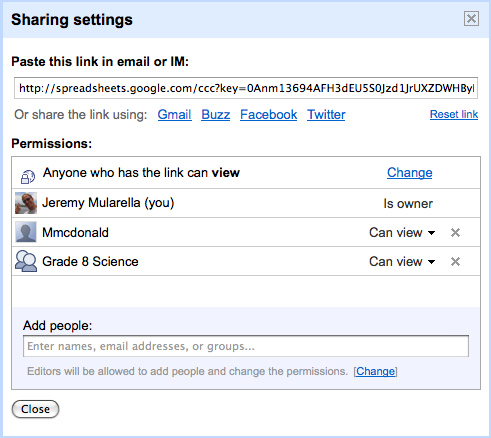
If you are interested in sharing documents with your students, you must either share them to be "Public on the web" or "Anyone with the link". I  make mine public on the web because there is nothing personal and if someone else can benefit from using them, that is fine with me. You also have the option to share an entire folder ("collection") so any documents placed inside that folder will have the same settings. I know this sounds complicated, but the link below explains all of them very nicely!


Other Ideas To Share Info with Students Using Google Docs:

Post daily homework assignments. 
  • In lieu of using an online homework site like Schoolnotes.com, we created an 8 Gold Homework Google Doc that gets updated every day with assignments for that night.
  • This document is "public on the web" so all students AND PARENTS can see the daily assignments.
     
  • It is also shared with the team teaches as well as a few trusted students who have access to edit the document. If teachers forget to update the document, one of these students can add the information.
Maintain a class "Plan Book". 
  • In addition to putting Science homework on the team homework doc, I also write down class summaries each day on a Science Plan Book Google Doc.
  • Students can look here if they are absent to get a more detailed idea of what we accomplished in class that day. I also provide links to any handouts and online resources showed in class that day (such as website links, YouTube videos, etc.)
  • I first experimented with this "plan book" approach last year. Not only was it helpful for my students, but I now have a detailed summary of my entire year to look back on. It has helped me keep track of my pacing this year as well as reflect on which lessons worked well and which ones I want to change.

Tuesday, September 20, 2011

Scheduling Student-Led Conferences

More and more teams at Oak and Sherwood are adopting a student-led conference model compared to the traditional teacher-parent conference. One of the big advantages to this format is the ability to meet more of the parents. In order to accommodate everyone, we have parents sign up for a fifteen minute time slot while they are visiting our classrooms on Curriculum Night. There are four openings for parents per time slot. If you would like access to the spreadsheet, please email us.

After Curriculum Night, we recorded the last name of each student and their time slot into a Google Spreadsheet. This document is shared with team members and made viewable to anyone who has access to the link.

How this helps us
  • Administration, Allied arts teachers, and Foreign Language teachers all have access to our Conference Day schedule. They know when to stop by if/when they need to speak with a student and his/her parents.
  • Parents who signed up for a time slot can confirm that time. If they realize there is a conflict, they can change.
  • Parents who were unable to attend Curriculum Night can see which time slots are still available. They can send an email to the team and request a meeting time. Once we "pencil in" a parent for a particular time slot, all other parents can see that time slot is no longer available.

Please leave a comment with any suggestions you have regarding student-led conferences. 

Do you have another system for scheduling parents?
Does your team use technology during the conferences?
Any other suggestions for using Google Spreadsheets?

Monday, July 4, 2011

Starting off the school year with Google Docs

The first week of school is always exciting as I attempt to learn the names of my 100+ middle school students while attempting to teach them our team's expectations for the year. We make an effort to get to know every student and spend some time on team-building activities. In years past, each teacher also had students fill out a questionnaire in class. They were all similar so the students ended up writing the same responses four times. We would read them once then throw them in our desk where they stayed for the rest of the year. We rarely shared responses with each other.

This year, we combined our questionnaires into a single form using Google Docs. There were personal questions, academic questions, and even questions about their use of technology and social media. As soon as student were finished, we spent time together during our prep time reviewing their responses. Depending on the type of question, we could see graphic representations of the summary of their responses. For example, you can see above that Science is their overall favorite subject in school! You can view our student survey here and see the types of questions we asked. We received excellent data overall that will definitely shape our teaching this year! If you would like a copy of this form to modify and use in your classroom, email me and I'll share the document with you.

I am also relying on Google Docs more this year to communicate and collaborate with my students. I created a "plan book" document where I will be writing summaries of my lessons. It also includes the benchmark for the day and the homework.

I have also created a shared folder in Google Docs I called "Science Docs". This folder is "public on the web" so anyone can find it and view it. I provided the students the URL for this shared folder on my team's website. Within this folder, I am creating subfolders for all of my different science units such as "Properties of Matter". It is my goal to either create all documents within Google Docs itself or at least upload the files to share in these folders. This way, students will be able to view, download, and print all of my class handouts from this one location if they are out sick or lose the original copy.

Friday, December 3, 2010

Google Docs Rocks

Google Docs allows you to create documents, spreadsheets, and presentations online. These files can be created from scratch, created from an online template, or you can upload existing files in their native format. The idea is simple: rather than emailing files back and forth to numerous people, have those people edit the SAME document online. Everyone stays on the same page and can see edits made by their peers. It's genius! Their Google Docs in Plain English YouTube video explains this more clearly.


The main selling point to why someone would use Google Docs compared with Microsoft Office is its collaboration features. As the owner of a document, you can choose how to "share" it. There are three options by default:
  1. Public on the web: Anyone can search for and find the document (no sign-in required)
  2. Anyone with the link: You can share the link to a document on a website or with a certain group of people via email or chat (no sign-in required)
  3. Private: Only people explicitly granted permission can view the document (sign-in required)
Once you have decided who you want to view this doc, you then decide who has editing capabilities. Say you share a spreadsheet with ten people, you may only want two of them to be able to edit whereas the rest can view only. There is also an option where you can allow anyone to edit (no sign-in required). I have yet to find a purpose for this though.

Most of my teaching documents are public to some extent, but I only allow other science or team teachers to edit my docs. The exceptions would be personal docs or teaching-related docs that include private information such as test material or student grades.

The other great thing about storing these documents in the "cloud" is that they can never be accidentally lost. Say goodbye to the days of students forgetting their flash drives, leaving a report at home, printer running out of ink, etc. They can either share their documents with the teacher or at the very least access them at school via the Internet.

Over the course of the one year that I have been using Google Docs (I currently have 100 documents stored in their cloud), the improvements have been solid and often. I feel they really do pay attention to customer feedback and are dedicated to making this service stronger. The embedded video below shows some of these improvements.


Ideas for using Google Docs:

Use Google Documents to plan our team meeting agendas and write up our parent newsletters. Teachers on our team would add agenda items and class updates ahead of time so our meetings were more productive. We would then copy and paste the parent updates into an email which the ELA teacher would then zip off to all of the team parents. We would use the same file each time and change it to reflect what was new. This year, I plan on making different docs each time, and then having a link on our team website to the newsletter archives for parents.

Communicate with non-English speaking parents. Google announced just last week that all Google Docs can now be translated into one of 53 different languages! 

Make Google Document lessons public and viewable for students. This includes handouts, homework assignments, and all Google Presentations. I uploaded all of my PowerPoint presentations and while they may not convert perfectly (especially if you have animations or transitions) it is very helpful for students to use for reviewing for a test.  

Have students share assignments with you and other students. I only utilized this during my science fair project. Students shared a document with their partners and a few shared their ongoing lab report with me so I could give ongoing feedback. I do know that Mr. Pizzuto (ELA teacher) collaborated more with students due to the larger number of long term writing assignments he assigned.

Use Google Spreadsheets for my student grade book. While their Spreadsheets cannot do everything that Excel can, it's getting close. The pros far outweigh the cons. I have instant access to all of my students' grades from any computer without having to worry about losing my paper grade book or Excel grades should my laptop crash. For this school year, I also plan on creating a spreadsheet for my plan book. Students will have

Use Google Forms to create surveys for students and parents. This ranged from getting parent feedback on our student-led conferences to finding out a good date for our team hike.
These can also be used to make short little quizzes for students. I also used it as my beginning of the year "getting to know you" survey for students. It gave us a lot of great information we were able to revisit throughout the year. Regardless of how its used, you can access a "summary of responses" to get instant feedback. This event creates an appropriate graph depending on the format of your question. See an example below.


Resources for using Google Docs 


Lots of great videos from the Google Apps team


Final Thoughts: 

I have found myself using Google Docs more and more over the last year. However, I am not ready to totally quit using Microsoft Office either. As great as it is, Google Docs still does not quite have the formatting capabilities of its software counterpart. The good news is that if I have a document, or even a pdf file, I can upload it to my Google Docs withoutreformatting them. This lets me share the doc and keeps it looking exactly as you want it, but this also means you will not be able to edit it online. 

As I said in my earlier post, I feel that in another year or two of updates and improvements, I will be ready to fully adopt this as my editing suite. I am confident it will be just as good if not better than anything else on the market. Let's just hope it stays free!

Google Apps

Early last summer, when I began to research emerging technologies to use in the classroom, I signed up for a free Google account. I had long grown tired of my Yahoo email client and Gmail drew me in. I had never used any Google applications other than just their basic search engine, but that was all about to change.

Once I became comfortable using Gmail (which I absolutely love by the way), I began to explore other Google apps that would benefit me in the classroom. You could spend days just reading on all of the different tools Google offers, but I chose to focus on learning just a few: Google Docs, Google Calendar, Google Reader, and Blogger. 
Over the past year, I have learned a lot by using these apps in both my personal and professional life. In order to give you a sense on just how valuable each of these has proven to be, I will be writing a separate blog post on each.

I would like to point out that I have been using these Google apps to collaborate with a relatively small subset of teachers and students. I am hoping this will continue to expand to include at least a majority of teachers in my building. Somewhere down the line, I hope to speak with our IT Director to consider looking into Google Apps for Education. This is a FREE suite of communication and collaboration tools that is meant to replace expensive software-driven Microsoft applications. Each student and faculty is given access to Gmail for their email client (much better than Entourage!) as well as Google Docs, Google Calendar, Google Wave, Google Sites, Google Video, and Google Groups. In May, Google announced that other apps including Blogger, Google Reader, iGoogle, and YouTube would be integrated into the Google Apps for Education suite this Fall as well.

While I do think this is where many schools are heading, I admit that I am not quite there yet. Give me Gmail and Google Calendar now, but as I'll explain in my next post why I'm not quite ready to abandon my Microsoft Office suite for Google Docs. Give me another year or two, and I'll be "all in."