Have you ever gotten to school, only to find your flash drive is sitting at home, or the file you thought you saved on your school system was saved somewhere else? With this tool, that will never happen again...
Dropboxis a file sync and storage system that allows you to keep files in sync across multiple computers and backed up on their servers. When you register for a free account and install the program, it creates a folder on your computer. This folder is like any other folder on your system - you can store files in it, open them, save them, etc. The difference is that the items you save in that folder are being saved remotely - on the Dropbox site, not your computer.
With this program installed, you can access files on multiple devices at any time. (There are Dropbox apps for iPhone, iPad, Android, and Blackberry.) Once a file is updated on one device, it automatically gets synced on all other devices.
You can also share specific files or entire folders in your Dropbox with other users -- allowing you to get files to those who need them, without worrying about an email attachment being too large. The site gives 2 gigabytes free, and another 250 MB for each person who references you when they sign up - they also get an additional 250 for using the referral. The short video below explains the basics of this tool.
Benefits to Using Dropbox:
Back up all of your important documents. They used to say "Back up everything to the server", but this was time consuming and only accessible from within school. Dropbox automatically backs up everything without you having to worry about it. It also keeps track of deleted files. These can be restored later on.
Undo mistakes. Dropbox saves not just your file, but each earlier version that you saved. So, if you accidentally deleted a paragraph or slide, etc., you can go back to a previous version.
Keep your files organized on different computers. Many teachers use their school laptops in addition to another home computer, tablet, or smart phone so it can be tough keeping everything organized. Since Dropbox keeps all of your devices in sync with each other, you are more organized.
Collaborate using shared folders. We have a shared "8 Gold" folder that includes student schedules, calendars, and "beginning of year" forms. If someone edits a document, the changes are updated for all of us. Derek and I have another shared folder for the school yearbook.
Google Docs allows you to create documents, spreadsheets, and presentations online. These files can be created from scratch, created from an online template, or you can upload existing files in their native format. The idea is simple: rather than emailing files back and forth to numerous people, have those people edit the SAME document online. Everyone stays on the same page and can see edits made by their peers. It's genius! Their Google Docs in Plain English YouTube video explains this more clearly.
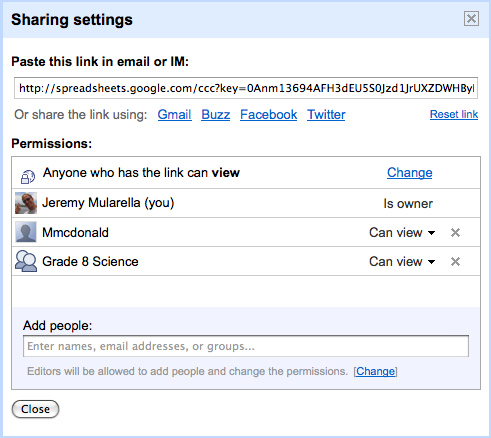
The main selling point to why someone would use Google Docs compared with Microsoft Office is its collaboration features. As the owner of a document, you can choose how to "share" it. There are three options by default:
Public on the web: Anyone can search for and find the document (no sign-in required)
Anyone with the link: You can share the link to a document on a website or with a certain group of people via email or chat (no sign-in required)
Private: Only people explicitly granted permission can view the document (sign-in required)
Once you have decided who you want to view this doc, you then decide who has editing capabilities. Say you share a spreadsheet with ten people, you may only want two of them to be able to edit whereas the rest can view only. There is also an option where you can allow anyone to edit (no sign-in required). I have yet to find a purpose for this though.
Most of my teaching documents are public to some extent, but I only allow other science or team teachers to edit my docs. The exceptions would be personal docs or teaching-related docs that include private information such as test material or student grades.
The other great thing about storing these documents in the "cloud" is that they can never be accidentally lost. Say goodbye to the days of students forgetting their flash drives, leaving a report at home, printer running out of ink, etc. They can either share their documents with the teacher or at the very least access them at school via the Internet.
Over the course of the one year that I have been using Google Docs (I currently have 100 documents stored in their cloud), the improvements have been solid and often. I feel they really do pay attention to customer feedback and are dedicated to making this service stronger. The embedded video below shows some of these improvements.
Ideas for using Google Docs:
Use Google Documents to plan our team meeting agendas and write up our parent newsletters. Teachers on our team would add agenda items and class updates ahead of time so our meetings were more productive. We would then copy and paste the parent updates into an email which the ELA teacher would then zip off to all of the team parents. We would use the same file each time and change it to reflect what was new. This year, I plan on making different docs each time, and then having a link on our team website to the newsletter archives for parents.
Communicate with non-English speaking parents. Google announced just last week that all Google Docs can now be translated into one of 53 different languages!
Make Google Document lessons public and viewable for students. This includes handouts, homework assignments, and all Google Presentations. I uploaded all of my PowerPoint presentations and while they may not convert perfectly (especially if you have animations or transitions) it is very helpful for students to use for reviewing for a test.
Have students share assignments with you and other students. I only utilized this during my science fair project. Students shared a document with their partners and a few shared their ongoing lab report with me so I could give ongoing feedback. I do know that Mr. Pizzuto (ELA teacher) collaborated more with students due to the larger number of long term writing assignments he assigned.
Use Google Spreadsheets for my student grade book. While their Spreadsheets cannot do everything that Excel can, it's getting close. The pros far outweigh the cons. I have instant access to all of my students' grades from any computer without having to worry about losing my paper grade bookor Excel grades should my laptop crash. For this school year, I also plan on creating a spreadsheet for my plan book. Students will have
Use Google Forms to create surveys for students and parents. This ranged from getting parent feedback on our student-led conferences to finding out a good date for our team hike.
These can also be used to make short little quizzes for students. I also used it as my beginning of the year "getting to know you" survey for students. It gave us a lot of great information we were able to revisit throughout the year. Regardless of how its used, you can access a "summary of responses" to get instant feedback. This event creates an appropriate graph depending on the format of your question. See an example below.
I have found myself using Google Docs more and more over the last year. However, I am not ready to totally quit using Microsoft Office either. As great as it is, Google Docs still does not quite have the formatting capabilities of its software counterpart. The good news is that if I have a document, or even a pdf file, I can upload it to my Google Docs withoutreformatting them. This lets me share the doc and keeps it looking exactly as you want it, but this also means you will not be able to edit it online.
As I said in my earlier post, I feel that in another year or two of updates and improvements, I will be ready to fully adopt this as my editing suite. I am confident it will be just as good if not better than anything else on the market. Let's just hope it stays free!
Early last summer, when I began to research emerging technologies to use in the classroom, I signed up for a free Google account. I had long grown tired of my Yahoo email client and Gmail drew me in. I had never used any Google applications other than just their basic search engine, but that was all about to change.
Once I became comfortable using Gmail (which I absolutely love by the way), I began to explore other Google apps that would benefit me in the classroom. You could spend days just reading on all of the different tools Google offers, but I chose to focus on learning just a few: Google Docs, Google Calendar, Google Reader, and Blogger.
Over the past year, I have learned a lot by using these apps in both my personal and professional life. In order to give you a sense on just how valuable each of these has proven to be, I will be writing a separate blog post on each.
I would like to point out that I have been using these Google apps to collaborate with a relatively small subset of teachers and students. I am hoping this will continue to expand to include at least a majority of teachers in my building. Somewhere down the line, I hope to speak with our IT Director to consider looking into Google Apps for Education. This is a FREE suite of communication and collaboration tools that is meant to replace expensive software-driven Microsoft applications. Each student and faculty is given access to Gmail for their email client (much better than Entourage!) as well as Google Docs, Google Calendar, Google Wave, Google Sites, Google Video, and Google Groups. In May, Google announced that other apps including Blogger, Google Reader, iGoogle, and YouTube would be integrated into the Google Apps for Education suite this Fall as well.
While I do think this is where many schools are heading, I admit that I am not quite there yet. Give me Gmail and Google Calendar now, but as I'll explain in my next post why I'm not quite ready to abandon my Microsoft Office suite for Google Docs. Give me another year or two, and I'll be "all in."